What is WordCraft Online?
WordCraft is an open-source document editor. WordCraft Online at wordcraft.work is an independently hosted way to use its browser edition. This site uses the fixed v0.5.0 web release and provides a short guide, desktop download links, and information about the edition you are using.
The focus here is document editing: work with text, headings, paragraphs, and lists, then save a DOCX copy or export a PDF. This edition is still in Alpha, so start with straightforward documents and review the result before sharing it.
This website is not an official ArtCraft service and is not affiliated with Microsoft. Read About WordCraft Online for the source project, runtime version, licenses, and credits.
How to open, edit, and save with WordCraft
Open a DOCX or start a new document
Keep your original file somewhere you can find it again. In the editor, choose File → Open → Browse… and select a local .docx file. Opening a document does not overwrite that original. If you cancel the file picker, the current document stays available.
For a new page, use File → New. The sample is another starting point when you want to explore the editor without choosing a file. Begin with a short document before moving on to one with more formatting.
Revise text and formatting
Click inside the document to type, remove a sentence, or change a heading. Select text before applying bold, italic, or a different font size from the Home toolbar. Use the paragraph controls for alignment and lists. Undo and Redo let you revisit an edit while you work.
For a useful first pass, fix the wording before adjusting the layout. Then read the document from the beginning and check whether headings, paragraphs, and list items still fit together. The WordCraft editing guide explains the basic controls.
Download a Word document copy
Choose File → Save or File → Save As to download a DOCX copy. Check your browser’s download list, then open the downloaded file to confirm that it contains your edits. If a file with the same name already exists, the browser may add a number to the new filename.
Give each important revision a clear name so you can tell it apart from the original. A downloaded DOCX is the copy to keep when you expect to continue editing later.
Export and review a PDF
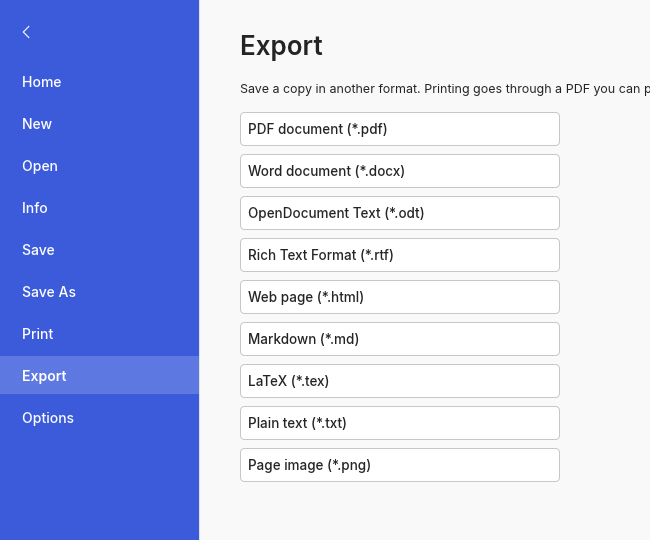
Use File → Export, then select PDF document (*.pdf). Open the downloaded PDF in a viewer and inspect the pages you plan to share. Check headings, text, tables, images, and page breaks. A short review helps you notice layout differences before the file leaves your device.
The PDF export instructions show the original File menu and explain where to find the export option.
Everyday documents you can work on
Letters and short drafts
Use WordCraft to revise a straightforward letter, a short proposal, or a draft with ordinary paragraphs. You might update an address, shorten an introduction, or turn a dense paragraph into a list. Keep the original, make your edits, and download a version with a distinct name.
Notes and meeting summaries
Turn rough notes into a document that someone else can follow. Add a heading, separate decisions from discussion, and use a list for the next actions. These are ordinary editing tasks you can do in WordCraft; sharing the finished file happens through whichever service you choose afterward.
Documents with tables or images
Simple DOCX documents may contain tables and images alongside text. After editing, inspect those elements in the downloaded copy. Check whether table cells still contain the expected text, whether images appear in the right place, and whether the page breaks make sense. The Alpha edition may render them differently from the application that created the original.
Choose DOCX or PDF for your next step
Save a DOCX when you want an editable document to keep working on. It is a practical choice for a draft that still needs changes or a copy you intend to open in another word processor. Keep a separate original so you can compare versions if formatting changes.
Export a PDF when you want to review or share a page-based copy. Check the export before sending it, especially when the document includes tables, images, or a particular layout. WordCraft offers both download paths, so you can keep a DOCX for later edits and a PDF for the version you are ready to share.
Where your documents are kept
WordCraft Online processes the document in your browser. This site does not upload the document’s contents or keep an online library of your files. There is no sign-up step or account folder to manage.
Your downloaded copies are what you keep after the session. Refreshing the page, closing the tab, or leaving the editor may end your work in progress, so save a copy before you go. For longer edits, download copies at useful milestones.
The privacy page explains document processing and website analytics separately. Local document processing does not mean the website works without a connection: the browser still needs to load the page and editor assets.
Document compatibility and browser requirements
This edition is designed for desktop browsers. A larger screen gives the toolbar and page room to work. Use a current browser with JavaScript enabled, and start with the sample if you want to check whether the editor launches on your computer.
WordCraft is still in Alpha. Straightforward text, headings, and lists are a sensible starting point. Fonts, tables, images, and pagination can differ from Microsoft Word. Complex charts, SmartArt, macros, password-protected files, and exact Word pagination are outside this edition’s compatibility promise.
If startup fails, use Retry or Use compatibility mode. If the editor cannot run in your browser, follow the desktop download links to the upstream releases. You can also read the troubleshooting guide for loading, file-opening, and download problems.